Create your first agent.
Start with a ready-made workflow or a JSON export, tailor it in your workspace, give it the access it needs, and validate it before it goes live.
Open Agent Builder.
From the navigation, select Build, then choose Agent Builder. This is where you create, import, and manage workflow drafts in your workspace.
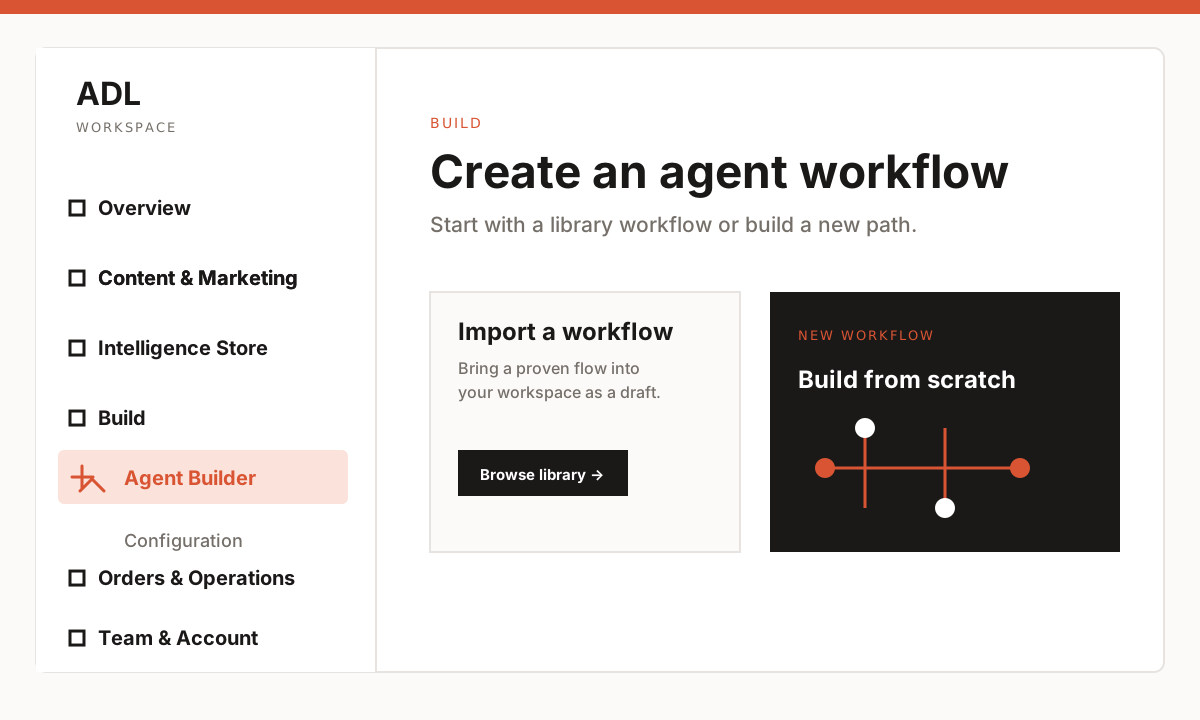
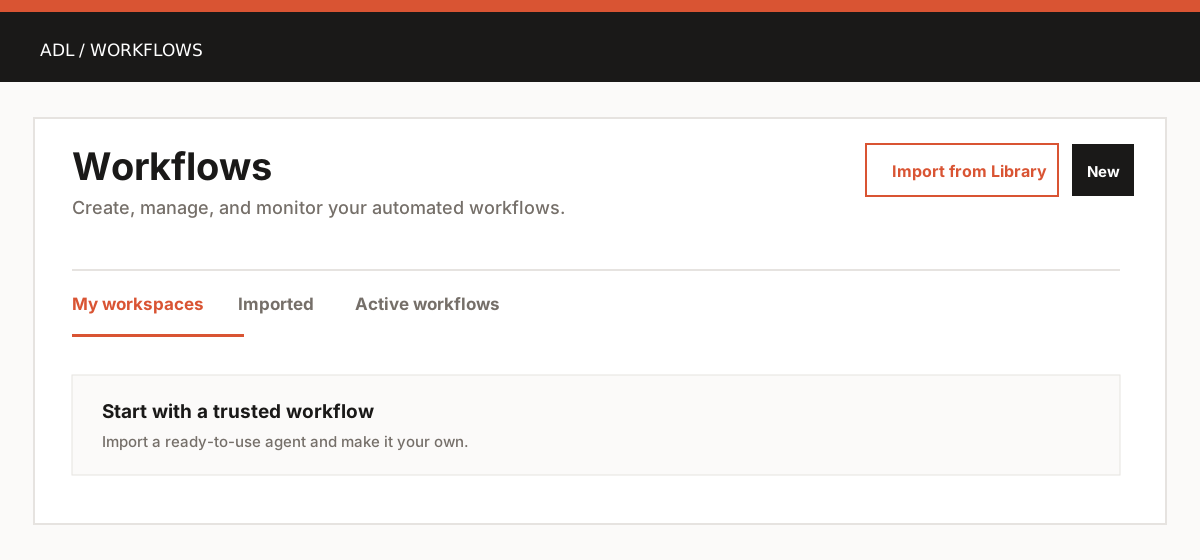
Bring in a workflow two ways.
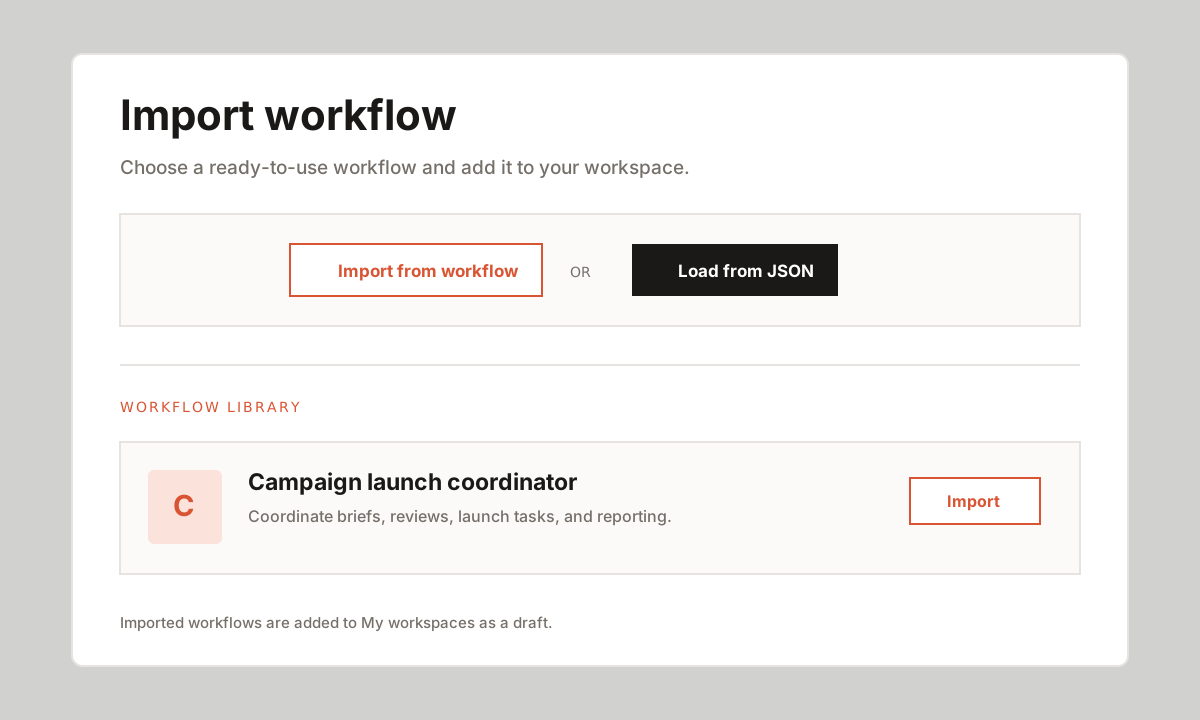
On the Workflows page, choose Import from Library. You can select an existing cloud workflow from the library, or choose Load from JSONto import a workflow file supplied by your team.
Edit the workflow for your business.
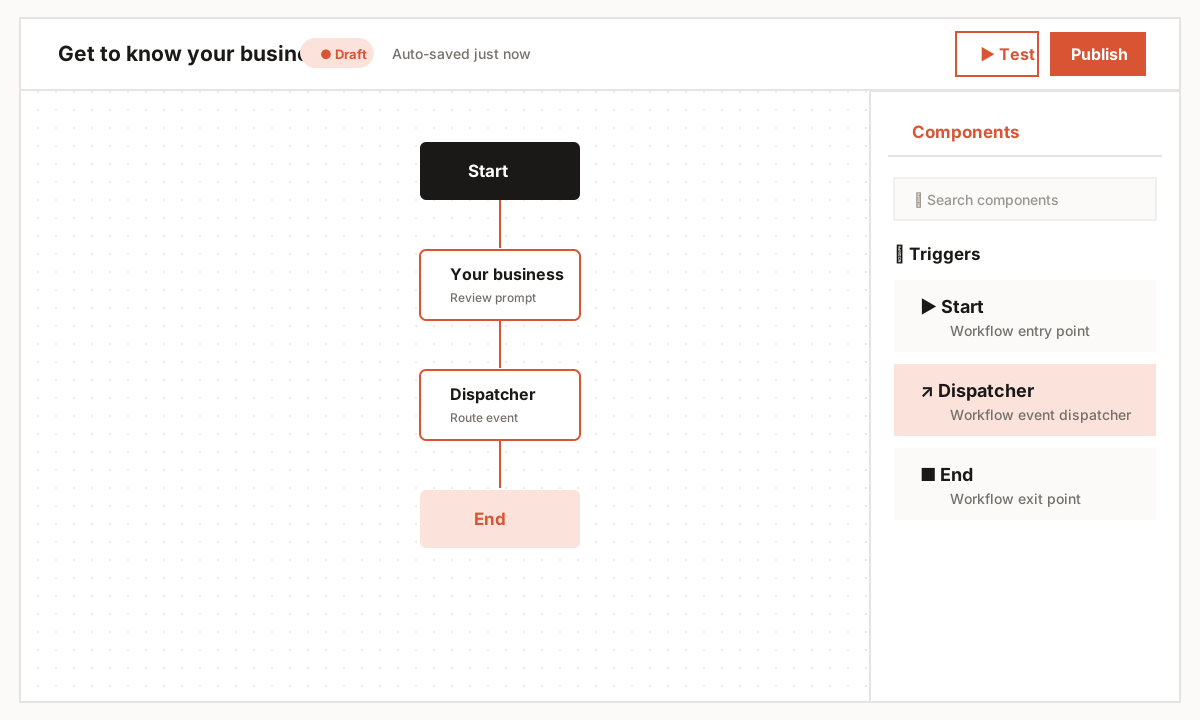
Open the draft from your workspace to enter the visual editor. Update the prompts, fields, conditions, and handoffs so every step reflects your process. Changes are auto-saved while the workflow remains a draft.
Use the right components
Add prompts, conditions, messages, and outcome nodes from the Components panel.
Make it autonomous
For an autonomous agent, attach a Dispatcher node after Start. It receives workflow events and routes work into the flow.
Provide only the access the workflow needs.
Open each connected service or action node and add its required access token in the node configuration. Keep tokens in the workspace’s secure credential store—never paste them into prompts, JSON files, or frontend code. Save the configuration before testing.
Test before you publish.
Select Test in the editor and walk through a realistic input. Check every branch, connected action, and final outcome. When the draft behaves as intended, select Publish to make the workflow available.